
The Replicate Expense feature allows you to quickly create multiple expenses from an existing one when you incur the same type of expense over several days.
Instead of entering the same details repeatedly, you can create the expense once and replicate it across selected dates.
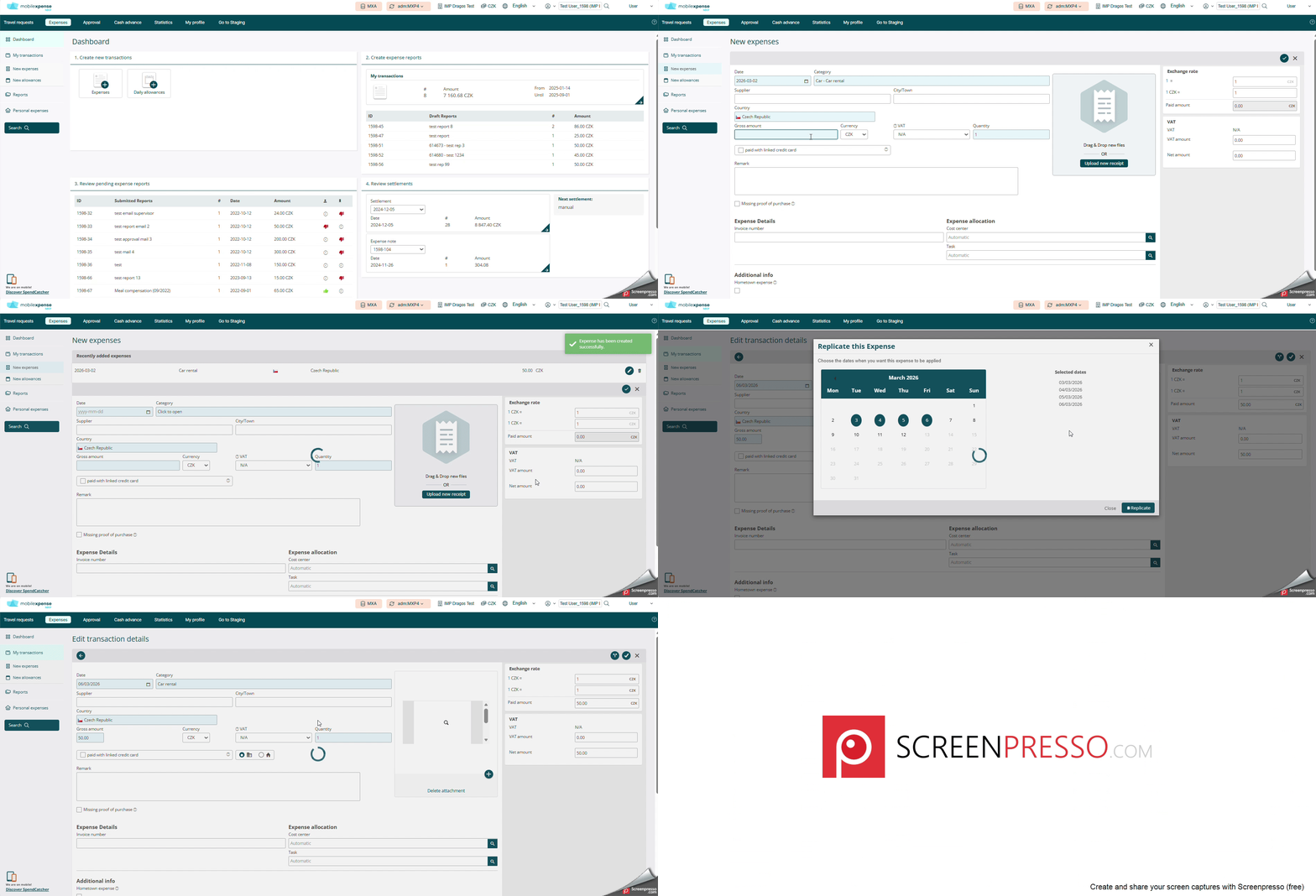
Follow these steps:
1. Create your expense
Add a regular expense as you normally would and save it.
2. Select the Replicate option
Open the expense you have just created and click the Replicate button, which is now available.
3. Choose the dates
Select the dates for which the expense should be created and click Replicate.
4. Expense replicated successfully
A green confirmation message will appear indicating that the expenses have been successfully replicated. Close the window to continue.
5. Check the created transactions
Open your transactions list to view all the replicated expenses. They will be available and ready to be included in your expense report.
Important notes
Please keep the following in mind when using this feature:
-
Replicate Expense is available only for regular expenses
-
Mileage and allowances cannot be replicated
-
Attachments are not copied to the replicated expenses. If receipts are required, they must be added individually to each expense after they were created.
-
Functionality is only available in Web app.
If you would like to discover how to perform several of the tasks related to an expense transaction, including how an expense report can be created, kindly check the articles below: